Using the My Team Dashboard
The My Team dashboard shows what needs you today: requests to approve, contracts and probation ending soon, who is leaving, recent joiners and moves, and who has not acknowledged a policy. Open it each morning to see what needs your attention without going through each module. It is the first tab you see when you open My Team.
This article is for managers and HR admins.
Where: My Team › Dashboard
You need: nothing to open it. Each card inside depends on your rights, and cards you cannot use are hidden.
How to open the dashboard
- Select My team in the sidebar.
- Select the Dashboard tab if it is not already open. The number on the tab counts only what is waiting on you to approve or sign.
How to use the summary cards
Four cards sit across the top of the page, under your greeting. Each shows a count over a rolling window, so the numbers move every day.
- Recently hired: employees hired in the last 30 days.
- Ending probation: employees whose probation ends in the next 30 days.
- Contract expiring: employees whose contract ends in the next 30 days.
- Pending separation: employees with a separation date in the next 30 days.
Select a card to open the Team page, filtered to those people. A 0 is normal. The counts only include employees your access covers.
How to work through your Approvals inbox
The Approvals inbox collects the requests that need a decision. When you can see more than your own, its header shows both numbers, for example 35 pending · 1 awaiting you.
- Find the Approvals inbox card.
- Under Awaiting your approval, select a request type, such as Data change requests, to expand it. Each type shows how many are pending.
- Select View to check a request, or Approve to approve it from the row. For Documents for you to sign, select Review & sign.
- To approve several, tick them or tick Select all, then select Approve with the number selected and confirm.
- Use the arrows under the list to page through a long queue.
- Select View all to open Team approvals, with search, filters and bulk decline.
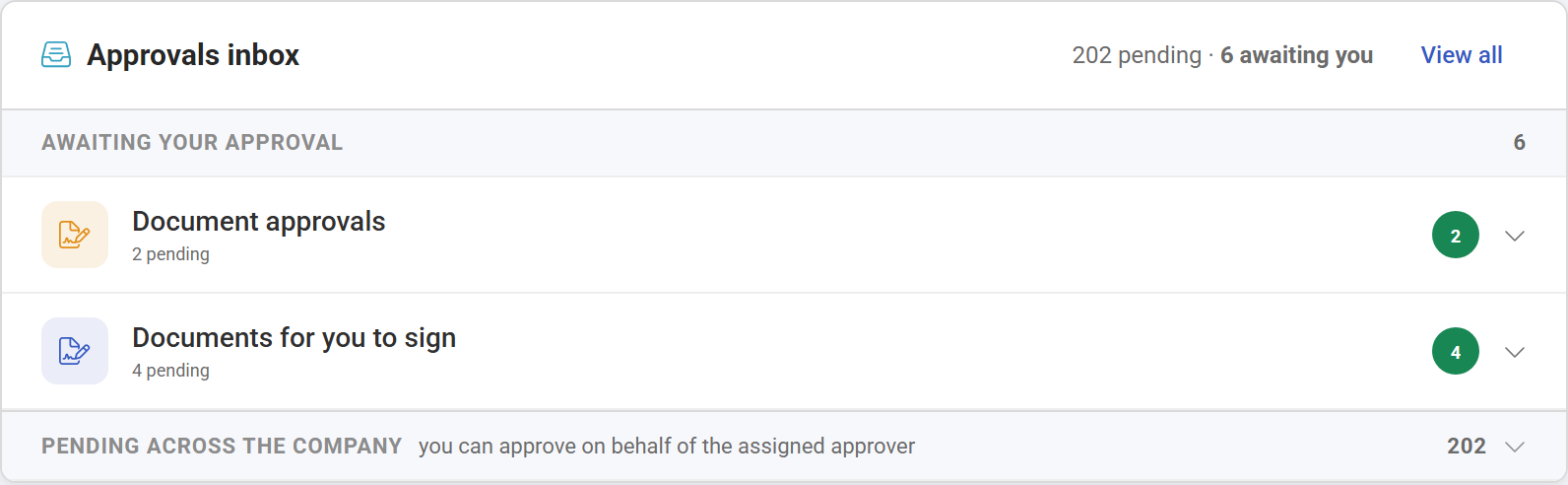
Pending across the company appears below your own list if your rights let you approve on behalf of the assigned approver, which helps when someone is away. Select it to expand it. Each request there shows Waiting on and the approver's name. For the full steps and rights, see Approving requests in My Team.
How to check key dates
Key dates — next 14 days lists up to 10 coming events, soonest first: Hire date, Contract expiry, Separation and Probation end. Each row shows the person, the event, and their position and branch. It does not list birthdays or work anniversaries.
- Scroll to the Key dates card.
- Select a row to open that person's profile in a new tab.
- Select Full report to open the Key Dates report, which covers every date type and any range.
How to follow team activity
Team activity shows up to five recent or coming people events, latest date first. Select an entry to open that person's profile in a new tab.
| Entry | What it means |
|---|---|
| NEW JOINER | Hired in the last 30 days |
| PROMOTED | Changed position in the last 30 days |
| DEPARTMENT CHANGE | Moved department in the last 30 days |
| BRANCH TRANSFER | Moved branch or subsidiary in the last 30 days |
| PROBATION ENDING | Probation ends in the next 14 days |
| SEPARATION | Separation takes effect in the next 30 days |
| DISCIPLINARY | A disciplinary action dated in the last 30 days |
Use it to confirm that a change you made was recorded.
Other cards
- Offboarding: appears if you have the Terminate Employee right. It shows how many offboardings are in progress and how many need attention, with Open Offboarding to see them all. See Tracking offboardings.
- Policy acknowledgements: appears if you have the Policy Library right. It shows how many people still have to acknowledge an issued policy, how many are overdue, and the policies with the most outstanding. Policy Center opens the Policy Center. Until a policy is issued, it shows No policies issued yet.
The other tabs
The dashboard is one of four tabs under My team: Dashboard, Team, Tools & Reports and Settings. Select Tour this page at the top right of the dashboard for a guided walkthrough.
What Happens Next
Each time you open the dashboard, the counts and lists refresh. When you approve a request, it leaves your list and the pending counts drop. If everything is handled, the inbox shows You're all caught up, and empty cards show a short message such as No key dates in the next 14 days, No recent activity or Nothing needs attention. Those mean there is nothing to act on, not that something is broken.
Tips
- Start with the Approvals inbox, then Key dates. Pending requests hold up other people's work, while key dates are things you can plan for.
- Use Key dates for renewals. A contract expiring in the next two weeks is your cue to decide before the end date arrives.
- Compare the summary cards with Key dates. The cards look 30 days ahead and Key dates looks 14 days ahead, so someone can show in a card before they reach the list.
- Check Team activity to confirm a change went through.
- If a card is missing, check your rights first. Ask your HR admin before assuming something is wrong.
Troubleshooting / FAQ
Q: Where do I see what I need to approve? In the Approvals inbox, under Awaiting your approval. Leave and overtime are in Attendance › Approvals.
Q: Why are there two numbers on the inbox? The first is everything pending that you can see. The second is what is waiting on you.
Q: The number on the Dashboard tab is smaller than the inbox. The tab counts only what waits on you, not requests you could approve on someone else's behalf.
Q: Why is someone in a summary card but not in Key dates? The cards look 30 days ahead, Key dates only 14.